Hard to miss. Easy to love.
Persistent full-screen reminders stay with you until you act. Snooze when life happens, then come back on your terms.
 QuestBell
Give everyday tasks a little character. Friendly full-screen reminders, pixel-art companions, and fewer things to keep in your head.
Windows 10 22H2+ / 11 · x64An interactive, illustrative preview in your browser. The real application runs on your Windows desktop.

ILLUSTRATIVE DEMO · PREPARED SAMPLE CONTENT · NO FILE UPLOADS
Persistent full-screen reminders stay with you until you act. Snooze when life happens, then come back on your terms.
Build a reminder with the phrase composer. English and Greek interfaces make your everyday language feel right at home.
100 detailed pixel illustrations bring personality to your day. Reminders work offline; cloud-folder sync and backups are optional.
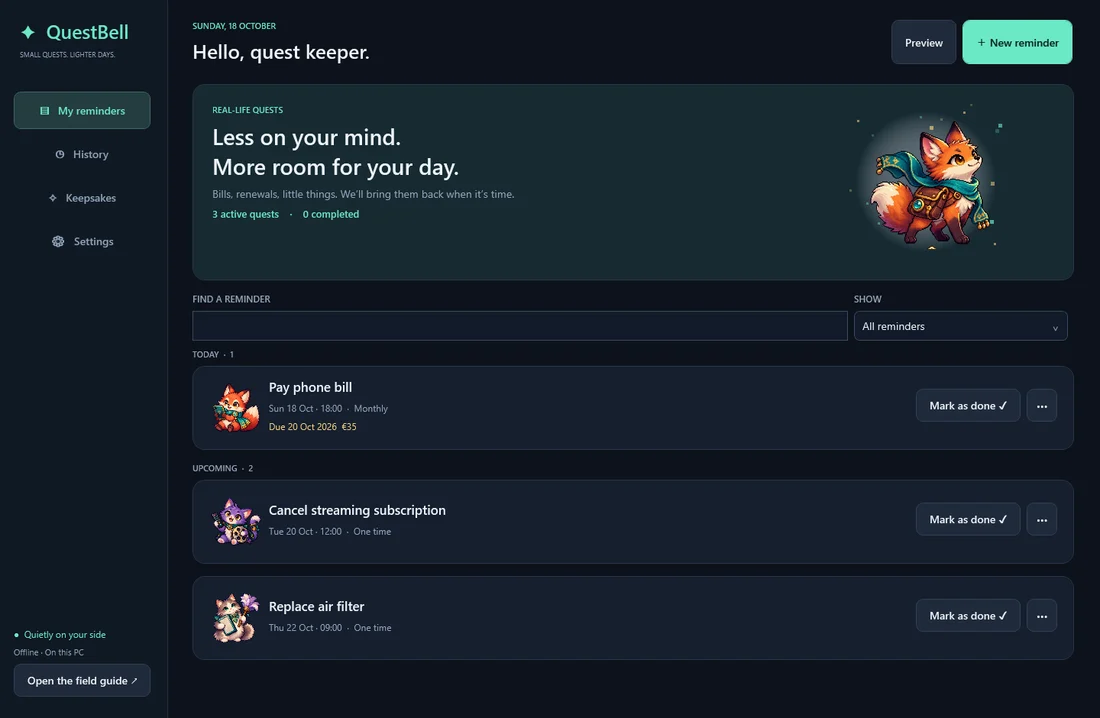
The QuestBell dashboard, straight from the project repository.
The per-user installer includes the app, runtime, artwork, sounds, and bilingual field guide.
Compose a reminder, choose when it appears, and pick your companion.
Complete or snooze reminders. Enable sync only if you want to share them between your own PCs.
Windows 10 22H2+ / 11 · x64
Source available on GitHub
The installer is unsigned. Reminders stay local unless you explicitly enable optional cloud-folder sync.
No. Reminders work offline without signing in. Update checks need an internet connection.
You choose a private folder managed by your existing cloud desktop client. QuestBell itself does not sign into a cloud provider. Sync and backups are off by default.
The installer is unsigned, so Windows may show an unknown-publisher or SmartScreen notice. Download only from the linked GitHub release.